Image-to-Video in Dreamina AI: Animate Your Photos
Image-to-video reverses the usual problem: instead of inventing a scene, you supply one — your photograph — and describe only the motion. That constraint is a gift. Composition, subject, and style are already decided by the photo, so the model spends its whole budget on movement, and results are steadier and more personal than text-to-video. This guide teaches the craft for the Dreamina AI application: choosing photos that animate gracefully, writing motion prompts that respect the still, and using the results well.
Personal photographs, product shots, artwork, and AI images you generated earlier all qualify as starting frames. The best candidates share one trait: they imply a next moment.
By the end you will look at your camera roll the way an animator does — every still a clip waiting for its verb.
Photos That Animate Well
Choose stills with a clear subject, a readable scene, and motion already implied: hair that wind could move, water that could ripple, a person mid-gesture, clouds with somewhere to go. Static, symmetrical, crowded scenes animate worst because the model must invent motion for fifty elements at once.
Resolution and sharpness matter as in all image work: the clip inherits the photo's detail as its ceiling. A soft photo animates into a soft clip, faithfully.
Describe the Motion, Only the Motion
Your prompt's whole job is movement: 'she turns her head and smiles', 'waves roll in and foam spreads', 'the camera slowly pushes toward the door'. Do not re-describe the scene the photo already shows; contradictory descriptions invite the model to rebuild the still instead of animating it.
One motion idea per clip remains the law. The camera move counts as one of the motions, so a subject acting plus a static camera, or a still subject plus a gentle push-in, are the two stable configurations. This division of labour is the same principle behind the text route in the Dreamina AI text-to-video guide, tightened by the photo's authority.
Keeping Faces Stable
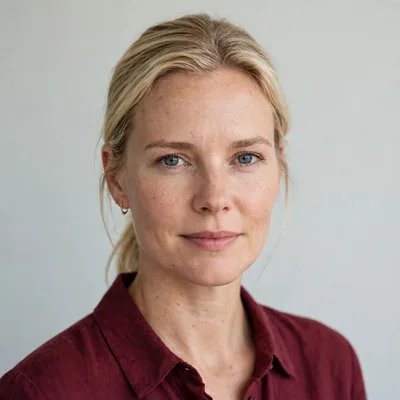
Faces are the stress test: ask for small motions — a blink, a slight smile, hair stirring — rather than big performances, and keep the clip short. Modest movement preserves identity; ambitious movement spends it, and the uncanny results are the receipt.
Frontal, well-lit portraits animate most honestly. Angled or shadowed faces give the model less to hold onto, and it will improvise the missing side the moment the head turns.
Products, Places, and Artwork
Product photos animate beautifully into listing clips: a slow rotation feel via camera movement, light sweeping across a surface, steam rising from the cup. The product itself should stay rigid — describe camera and environment motion and let the object be the still centre it is.
Landscapes and artwork love gentle life: drifting clouds, falling snow, a painting's river beginning to flow. These are the clips that stop thumbs in feeds, because a familiar still moving slightly reads as magic at small scale. The creator workflows in Dreamina AI for social media creators are built on exactly this economy.
First and Last Frame Thinking
Where the tool allows guiding the ending — a target frame or an extended description — use it for loops and transitions: clips that end where they began loop seamlessly in feeds, and clips that end on a known frame cut cleanly into the next scene.
Even without explicit controls, prompt toward an ending state: 'the door opens fully', 'the smile settles'. A described destination gives motion a plot, and plotted motion looks directed rather than ambient.
Fixing a Wayward Animation
When a clip warps — the face sliding, the background breathing — simplify the motion request before anything else. Halve the ambition: slower, smaller, fewer moving parts. Most wayward animations are over-asked, not under-powered.
If one element misbehaves while the rest pleases, crop or recompose the source photo to retire that element, or choose a different moment of the same subject. Source selection is a directing decision, and directors recast shots without sentimentality.
Ethics of Animating Real People
Animate your own photos and photos you have the right to use. Making a real person appear to act or speak beyond what they did is a fabrication, charming among family with consent and corrosive anywhere it could deceive.
Label animated creations where confusion is possible. The technique's wonder depends on audiences trusting that creators use it as illustration, not as evidence.
Supply the still, describe only the motion, keep ambitions small and faces smaller. Image-to-video rewards restraint with the most believable clips this technology makes.
Open your camera roll tonight and find the photo that implies its next moment. You already own your first clip; it is waiting for its verb.
Build the habit of scanning your camera roll with animator's eyes during ordinary life — the café window's rain, the dog's ear in the breeze, the harbour doing its slow mathematics. A reserve of noticed moments is the real library this tool draws on, and it costs nothing but attention to stock.
A last discipline for your library: file the source still and the finished clip together, always. Months later, when a clip is wanted again at a different length or a sequel is planned, the pair lets you re-animate from the true source instead of from a compressed copy of the result.
Related Articles
How to Update Dreamina AI to the Latest Version
Update Dreamina AI on Android in place: check the version, keep your projects safe, verify with a familiar generation, and fix stalled updates.
Read More →
Dreamina AI Text-to-Image Guide: From Words to Pictures
Create images from text in Dreamina AI: prompt structure that works, style and ratio choices, and the iteration loop behind every good result.
Read More →
Dreamina AI Text-to-Video Guide: Your First AI Clips
Create video from text in Dreamina AI: prompts that describe motion, camera language, duration and ratio choices, and fixing clips that drift.
Read More →
Dreamina AI Prompt Tips for Better Results Every Time
Prompt craft for Dreamina AI images and video: ordering, specificity, negative guidance, style anchoring, and the iteration notebook that compounds skill.
Read More →
Dreamina AI Canvas and Editing Tools Guide
Use the canvas editor in Dreamina AI: expand images, retouch regions, remove distractions, and blend generations into finished compositions.
Read More →
How to Upscale and Enhance Images in Dreamina AI
Upscale AI images for print and large screens: what enhancement can and cannot add, preparing files, checking results, and avoiding plastic over-processing.
Read More →
Dreamina AI for Social Media Creators: A Practical Workflow
A creator's workflow for Dreamina AI: series planning, covers that earn clicks, animated posts from stills, and batching a week of content in one sitting.
Read More →
Dreamina AI Credits Explained Simply
How credits work in AI generation apps like Dreamina AI: what consumes them, why video costs more than images, and habits that stretch a balance.
Read More →
Dreamina AI Video Not Generating? Fixes That Work
When Dreamina AI video generation fails, stalls, or returns errors: queue and connection checks, prompt causes, credit checks, and when to simply retry.
Read More →
Dreamina AI vs CapCut: Which Should You Use?
Dreamina AI generates footage; CapCut edits it. An honest comparison of generation versus editing, and the workflow that uses both in sequence.
Read More →
Product and Marketing Visuals With Dreamina AI
Create product and marketing visuals with Dreamina AI: hero images, lifestyle scenes, animated listings, and the honesty rules for commercial work.
Read More →
Dreamina AI on Low-End Phones: What to Expect
Use Dreamina AI on a budget Android phone: what runs on the service, what taxes your device, data and storage habits, and settings for smooth sessions.
Read More →
Dreamina AI Common Questions Answered
Plain answers about Dreamina AI: images versus video, credits, quality, rights, CapCut's role, and what to try when generations disappoint.
Read More →
How to Install Dreamina AI on Android Phones and Tablets
Learn how to install Dreamina AI on Android with simple steps, setup tips, and common checks before opening the app for the first time.
Read More →
Dreamina AI Features Guide for Android Users
Explore the main Dreamina AI features on Android, including prompt-based creation, image editing, and practical creative uses.
Read More →
Dreamina AI Device Compatibility Guide for Android Users
Find out which Android devices are best suited for Dreamina AI and what to check before installing the app on phones or tablets.
Read More →
Core Creative Functions in Dreamina AI Explained
Understand the main creative functions in Dreamina AI, from text prompts and image editing to visual drafting and design-focused use.
Read More →
Dreamina AI Not Working Common Problems and Fixes
Learn the common Dreamina AI problems on Android and the simple fixes that can help with installation, loading, and basic app performance.
Read More →
Best Ways to Use Dreamina AI on Mobile More Effectively
Discover practical ways to use Dreamina AI on mobile for better prompts, cleaner workflows, and more useful creative results.
Read More →